
Everything positions - reMarkable
There are multiple things at play that come together to really bring your lines, your PDF, lines, text and annotations all in the right place. Shall we take a look at how the math behind the screen ticks.
The main coordinate system
The reMarkable lines format itself internally stores the values in a coordinate system that is a little different than what we're used to. The horizontal center of the document is considered x=0 which seems odd, but when you think about it, this helps a lot with aligning things later on, especially when having multiple tablets, it's a lot easier to know the center and zoom out, then to figure out the scaling for each screen size, don't you think? I think reMarkable is very clever in this system. Am I missing something? Oh yeah, the vertical coordinate starts with y=0 at the top, scrolling down to y+, unless you're drawing on a PDF, you usually won't go any higher, and that's by design.
Groups, lines and items
The reMarkable format is like a tree, of lines and items like text and glyphs, the tablet also groups them sometimes into group items.
The important thing to note is that text plays a huge role here, the text creates anchors which can be mentioned by groups to position all the items inside that group aligned to that specific anchor, and that's how changing the text will move around your lines. I explained a bunch about text and anchors in my other blog post, so if you're curious, go look at that!
PDFs and how the math goes wild
PDFs are an interesting case, while reMarkable has tried their best to align your lines and keep them consistent with its zero in the middle, PDFs make things a lot more complicated. So instead of a fixed alignment of a notebook, PDF annotations can be placed anywhere, with the plane extending if you keep drawing on the edges, allowing you to go far beyond the usual page size. In reality this is a systematic change, allowing you to go border-less.
The PDF can inherently be of any size, so instead the tablet gives the user some freedom on how to position the PDF, typically the PDF will be scaled to the width of the device, so if you had a long page on a PDF, the tablet will align it so that it fits inside width of the device and can be scrolled, this is also why the frame border is removed, if you tell the tablet to instead fit the PDF horizontally, meaning it fits it in the height of the device and the pages are wider than the device screen, then the PDF will flow outside of the edges, allowing you to pan into those edges is obviously important, so there are no border restrictions here.
Let's look at the transformation steps to align a PDF to the main coordinate system.
- We first grab a PDF page at its full width and height, let's call these
pWfor the width andpHfor the height. - We scale it using the following equation
DPI / 72you might see where this is going if you read my other blog on text, the PDF scaling uses points for measurement, we need to fit this PDF onto our tablet screen, so we need to take our DPI which for the rM2 is227.54and we get our equation filled in at the value3.1602777777777775 - Now that we have our PDF with the correct scaled size, we can create a rect with its center at our
paperSize / 2
Let's give it a try, I'll be using a 1000x500 pixels test PDF I have, I've rendered the lines and pdf separately, let's try to merge them without scaling and see what happens, the lines are already clearly outside the usual pageSize
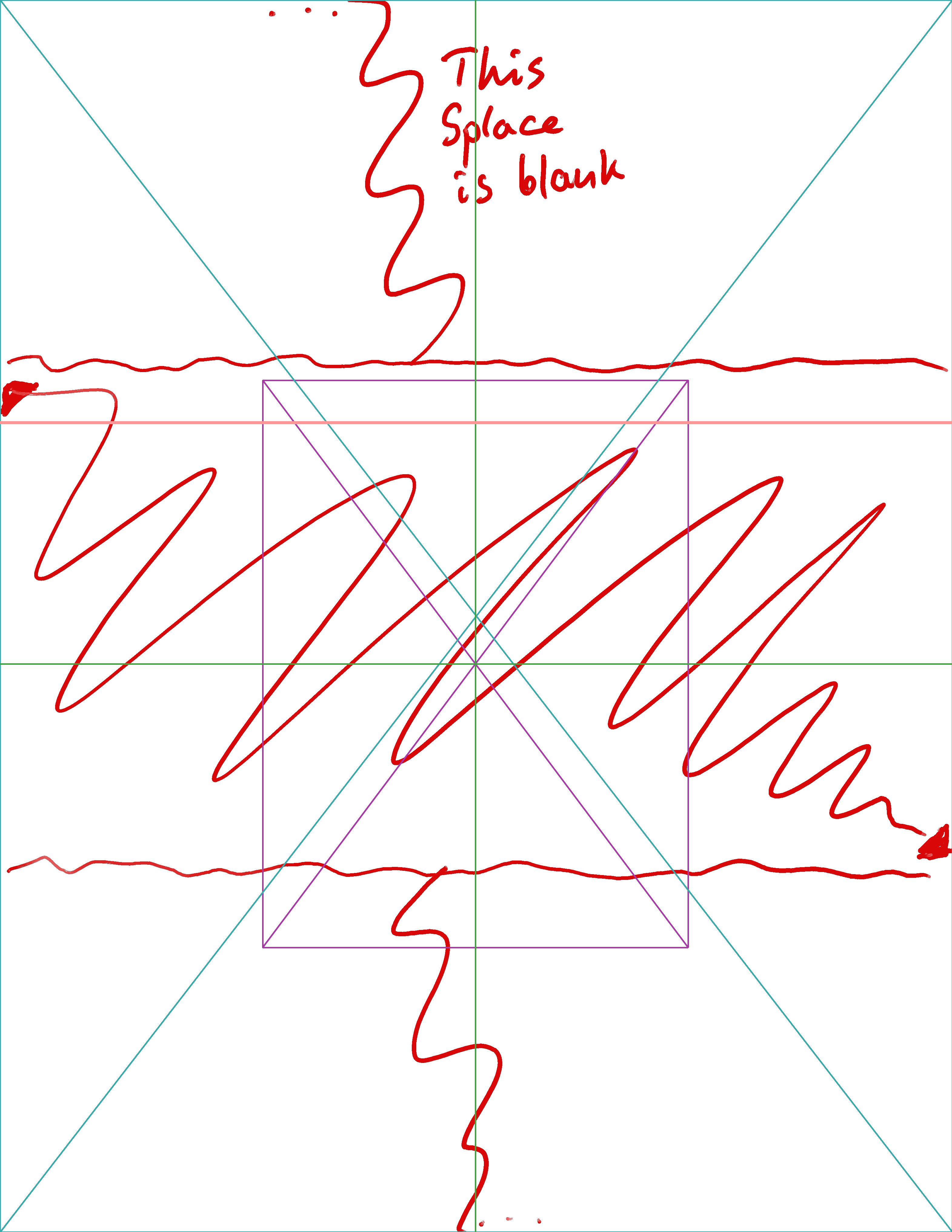
I've outlined the PDF and the space on the top and bottom. Now let's look at the PDF

And voila! This works flawlessly.
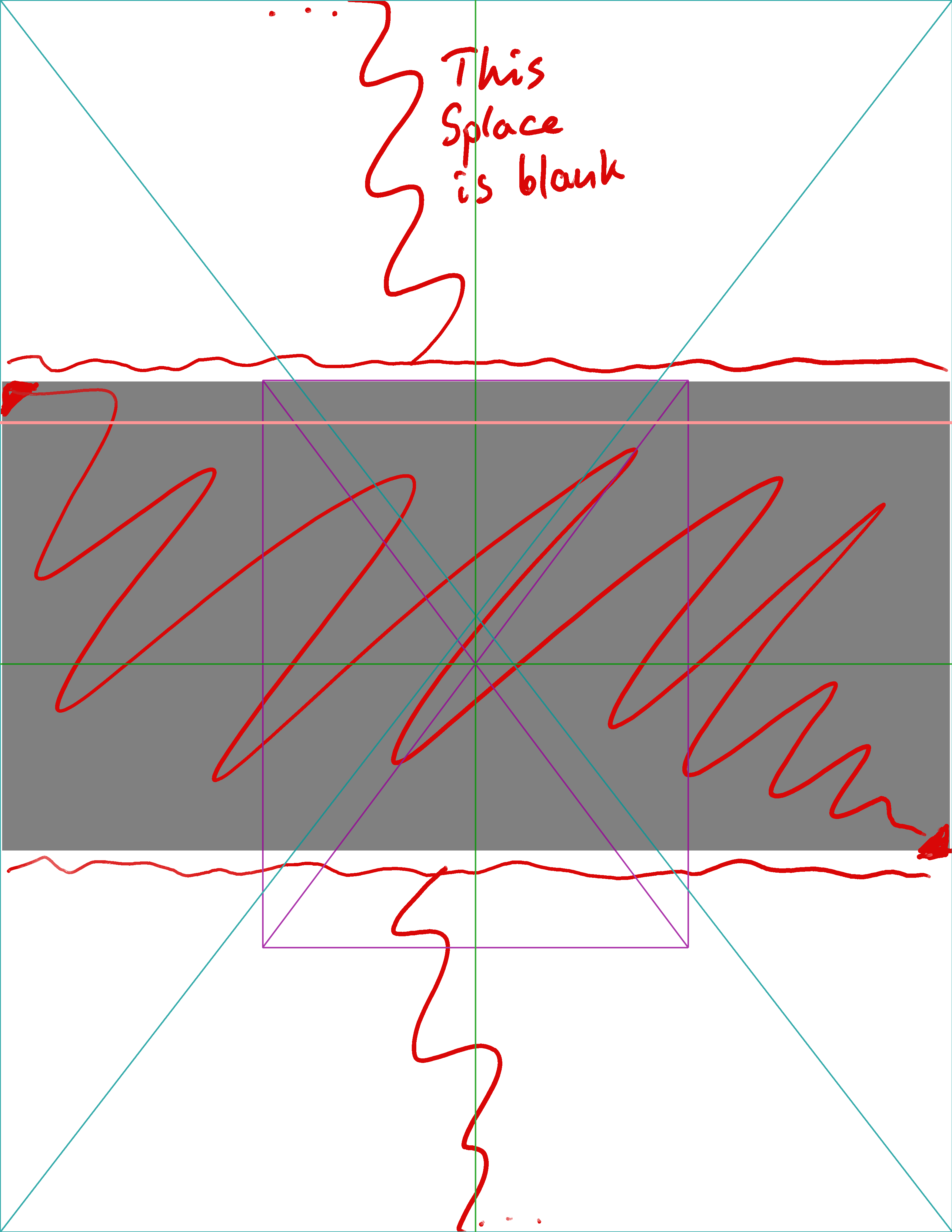
If you're interested in how this looks, I've made a basic script here that you can use to reproduce my examples above. Notice something btw, we've so far used the size of the PDFs as we know them in pixels when I generated these, the math works out, but I need to clarify something, a PDF technically doesn't have a pixel size, everything is in pt or points which doesn't do us much help. You'll want to scale the PDF down somehow using the media box as the reference for its internal size. After you get the PDF to match that size, all the above should work as expected!
One last cool thing that reMarkable has done is that actually, no matter which fit option you choose, the lines will still align when you try to combine them! But there is a catch, I've been showing you the expanded view, but if you look closely, the purple area above has the actual center, without that value we would not be able to align the PDF, so be careful with that.
Anyway that's all, I thought it would be more but after everything, it's quite simple.
And for those who noticed that I wrote Splace instead of Place or Space you can grab me a coffee by supporting me on my github. This is old research I've done for my old project Moss. But I plan to expand librm_lines and remarks with some support from scrybble.
With all the links and everything out of the way, that's all from me for now, see you next time!
~ Red

